

Successful networking involves sharing your contact details quickly and simply. With many professionals ditching paper business cards, the iPhone contact card has become a new normal.
iPhones come with handy built-in features like NameDrop and Share Contact that allow seamless contact exchange. However, iOS devices aren’t the only players in modern networking. Contact Co.’s smart wearables are redefining how professionals connect.
In this article, we explain how to efficiently share your contacts during events, share the best industry practices, and provide solutions to the most common iPhone sharing issues.
What Is an iPhone Contact Card?
iPhone comes with built-in features that allow anyone to share their contact card. Essentially, it’s a personal contact card that you can access in the Contacts app.
- Go to the Contacts app on your iPhone.
- Find the “My Card” icon below the search bar.
- Click on it to open your iPhone contact card.
If yours is empty, you can fill it out with your name, photo, phone numbers, home or work addresses, and email address. You can also add notes and explore additional fields that can be added to your personal card.
With iOS 17, Apple has introduced more features like Contact Posters and Name & Photo Sharing. These added features simplify and personalize sharing of your contact info.
But while these features work well, they still have limitations, especially when you want a flexible and professional contact card.
Method 1: Share Using NameDrop (Automatic)
NameDrop is a built-in feature that allows iPhone users to easily share their contact information with others.
The NameDrop feature is activated automatically and only works between two compatible iOS devices.
Here’s how to share your contact card on iPhone with NameDrop:
- Ensure both devices support NameDrop and are running the latest iOS.
- Bring the iPhones (or Apple Watches) close together to initiate NameDrop.
- Choose the details you want to share, and hit "Send."
Pros & Cons:
✅ Easy to use and automatic
⚠️ Works only with compatible iPhones or Apple Watches, so it’s not ideal for all devices
Method 2: Share Contact Card Manually
If your recipient doesn’t have an iOS device or the NameDrop feature, there are a few more ways to share your contact card from an iPhone.
Several ways to manually share are:
Using the Contacts App
In the Contact app, find your iPhone contact card again and follow these steps:
- Scroll down to the bottom of your contact card.
- Find and click on “Share Contact.”
- Select what field you would like to share or choose “Select All Fields.”
- Click on the tick button in the upper right-hand corner.
- Select how you would like to share your contact.
Pros & Cons:
✅ Simple and built-in feature for quick access and sharing
⚠️ Limited to Apple’s ecosystem
Using AutoFill in Messages

If you want to share your contact details using the Messages app, the AutoFill feature will come in handy.
Here is how to share contacts on iPhone with the Messages app:
- Open the Messages app.
- Find the recipients you want to send your iPhone contact card to.
- Long-press on the empty field, click on “AutoFill,” and choose “Contact.”
- Find your contact and send it to the recipient.
Pros & Cons:
✅ Fast and convenient for sharing details directly in Messages
⚠️ Your “My Card” has to be saved as a contact to be found in the contacts
Method 3: Create & Share a Digital Business Card Using Contact Co.


If you're looking for a more professional, customizable, and dynamic way to share your contact info, Contact Co. is your go-to solution.
Unlike the iPhone's built-in features, Contact Co. gives you the power to create a fully branded, always-editable digital business card.
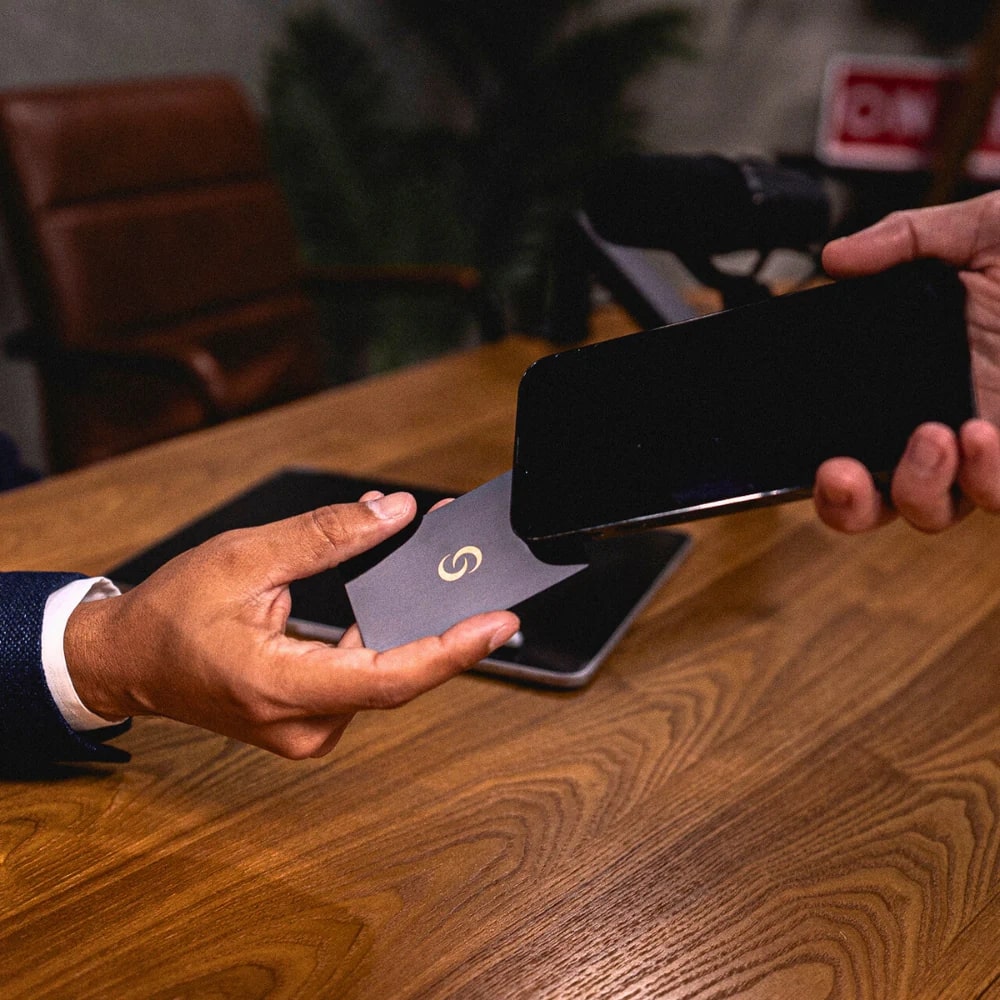
Your digital business card can be linked to your physical Contact Co. card or a wearable, all powered by NFC, to share your contact details effortlessly.
✔️ Edit your digital profile on the Contact Co. app any time without reprinting paper cards.
✔️ Remove the limitation of iPhone’s contact cards and add photos, videos, and links to enhance your business profile.
✔️ Contact Co. works effortlessly with all NFC-enabled devices and can also generate a QR code for instant sharing.
✔️ Equip yourself and your team with stylish and memorable cards and wearables, for digital and physical networking.
Tips & Best Practices
Knowing how to share your contact on iPhone is half the way, polishing your My Card details ensures your information looks professional and makes a strong first impression.
✅ Always keep your “My Card” up to date (photo, phone, email).
✅ Choose wisely what information to share and only share what’s necessary.
✅ Enable settings like Name & Photo Sharing and AirDrop permissions for smooth sharing.
✅ Test your sharing methods before important events to avoid tech hiccups.
✅ Always be mindful of what you’re sharing, especially when it comes to sensitive information.
Troubleshooting & Privacy Considerations
It may happen that your NameDrop feature doesn’t work. Luckily, there is usually a simple explanation and solution to this problem:
- Check that both devices are up-to-date
- Check whether the devices are compatible
To ensure recipients can receive your contact card, do this:
- Check AirDrop settings and confirm the recipient has the necessary permissions to accept your card.
Keep in mind that you can always choose what information you want to share. Hence, make sure you share only personal information that you feel comfortable with.
With Contact Co., you control the level of access and ensure your details are securely shared. Plus, our NFC-enabled wearables and cards are compatible with most devices.
Final Thoughts
There are plenty of ways to share your contact card on iPhone, from built-in methods like NameDrop to apps like Contact Co.
For quick and simple sharing, Apple’s native features are usually sufficient. However, if you want more control, flexibility, and a premium networking experience, Contact Co.’s wearable NFC solutions will make you the talk of the event.
Ready to take your networking game to the next level? Explore the Contact Co. wearables.


Share:
Are Business Cards Still Relevant Today?
Best Alternatives to Traditional Business Cards